Know Your Stats: See How You and Everyone Else Do on Every Question
Some questions you get right every single time. Others keep catching you out. Until now, the only way to know which was which was to remember, or to dig through old test reports. From today every question carries its own scorecard.
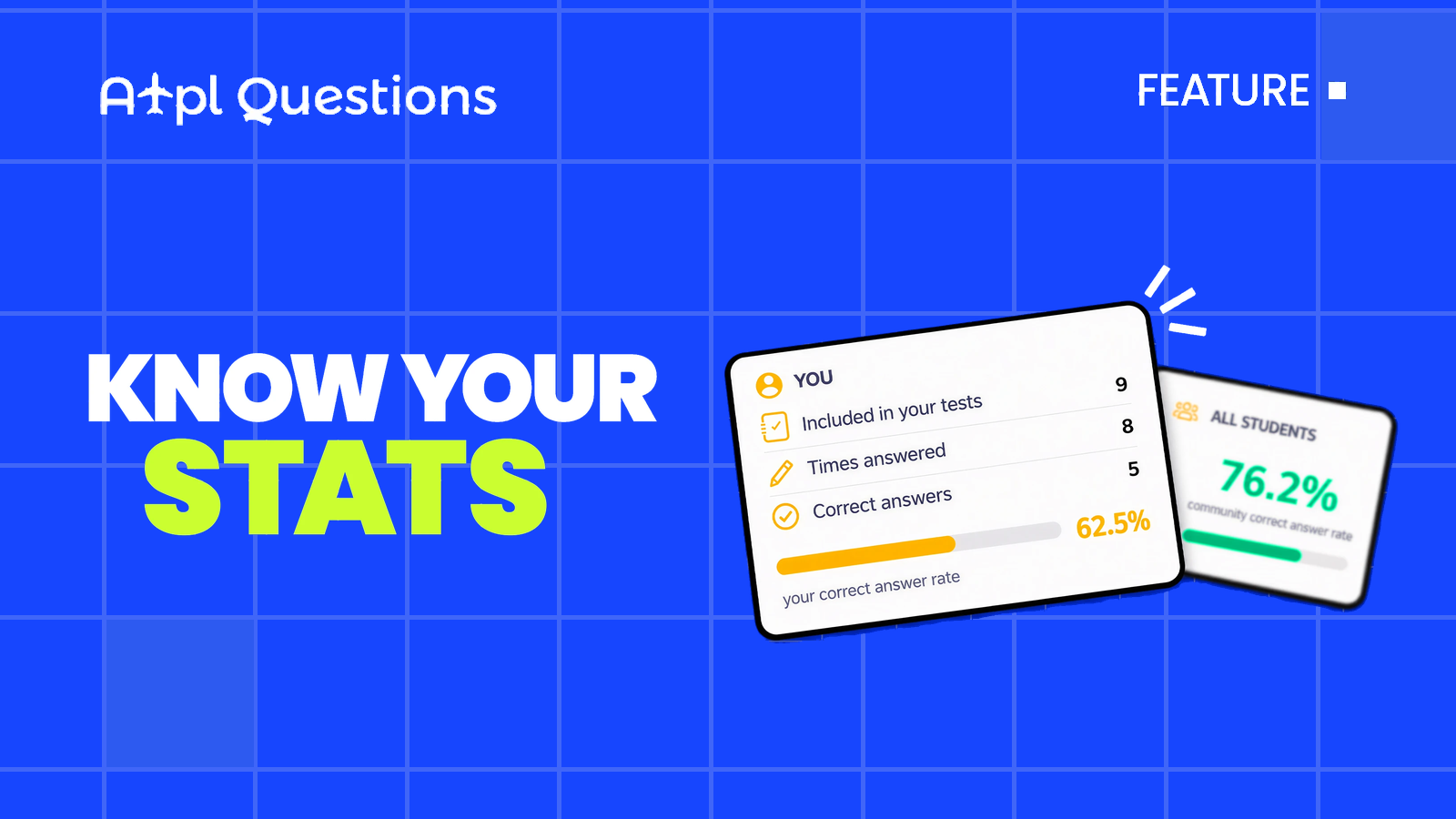
Open any question in Study or Exam review mode and you will find a new Stats tab next to Explanation and Comments. It answers two questions in one glance: how am I doing on this one? and how is everyone else doing?
Your side of the card
The You card is personal and always up to date. It shows:
- Included in your tests — how many of your saved tests contain this question.
- Times answered — how many times you have actually answered it, across study and exam tests.
- Correct answers — how many of those answers were right.
- Your correct answer rate — the two numbers above turned into a percentage, with a colour score: green when you are at 75% or better, amber between 50% and 75%, red below 50%.
If you have never answered the question, the card simply says so. No guessing, no noise.
The community side
The All Students card shows the percentage of students who answered this question correctly on their first attempt. We deliberately count first attempts only, so the number is not inflated by people who have already seen the answer and are retaking the question. It is the closest thing to "how hard is this question really?" that we can give you.
A question with a low community rate is not a question you should skip. It is one worth reading the explanation for, even if you happened to get it right.
How to use it
- Spot your blind spots. A red score on a question you thought was easy is a signal. Open the explanation and the comments before you move on.
- Calibrate your confidence. If your rate is above the community rate, you have that topic under control. If it is well below, add the topic to your next practice test.
- Judge the question, not just yourself. A question where most students fail at first attempt is a classic exam trap. Those are the ones to note down before exam day.
Small things we took care of
- The Stats tab loads only when you open it, so the test page stays as fast as before.
- Your own numbers are always fresh. Community numbers are refreshed regularly, so the rate you see is stable while you study.
- It works the same in Study mode and when you review a finished exam.
Open any question, click Stats, and see where you really stand. Then let the numbers decide what you study next.